IgniteIQ

AmaraTech IT | IgniteIQ
Learner Onboarding Guide

Learner Portal Guide

Everything you need to navigate the IgniteIQ platform — from your dashboard to earning certifications.

Section 1
1 / 7

IgniteIQ AI-Powered Enterprise Learning Platform

IgniteIQ enables intelligent professional development through an integrated AI platform that streamlines access to cutting-edge coursework and industry-recognized certifications. As a learner, you can engage with custom training assigned by your organization or explore a vast library of AI and Cybersecurity topics designed to keep your skills current in a rapidly evolving landscape.

Availability

Your access is determined by your subscription tier. You have immediate access to:

  • Assigned Training: Courses specifically curated and assigned to you by your company.
  • Free Tier Content: A selection of foundational courses available to all users.
  • Premium Content: Advanced certifications and specialized modules may require an upgraded subscription tier.

Core Platform Features

  • Expansive Course Catalog: Access a diverse array of content generated by the IgniteIQ platform, ranging from foundational 101s to intermediate specialist certifications.
  • Personalized Dashboard: View your enrolled courses, specific Learning Paths, and real-time progress for every active module.
  • Verifiable Certifications: Earn authentic, downloadable certificates upon the successful completion of courses and final exams to validate your expertise for industry use.
Section 2
2 / 7

1. Navigating Your Home Dashboard

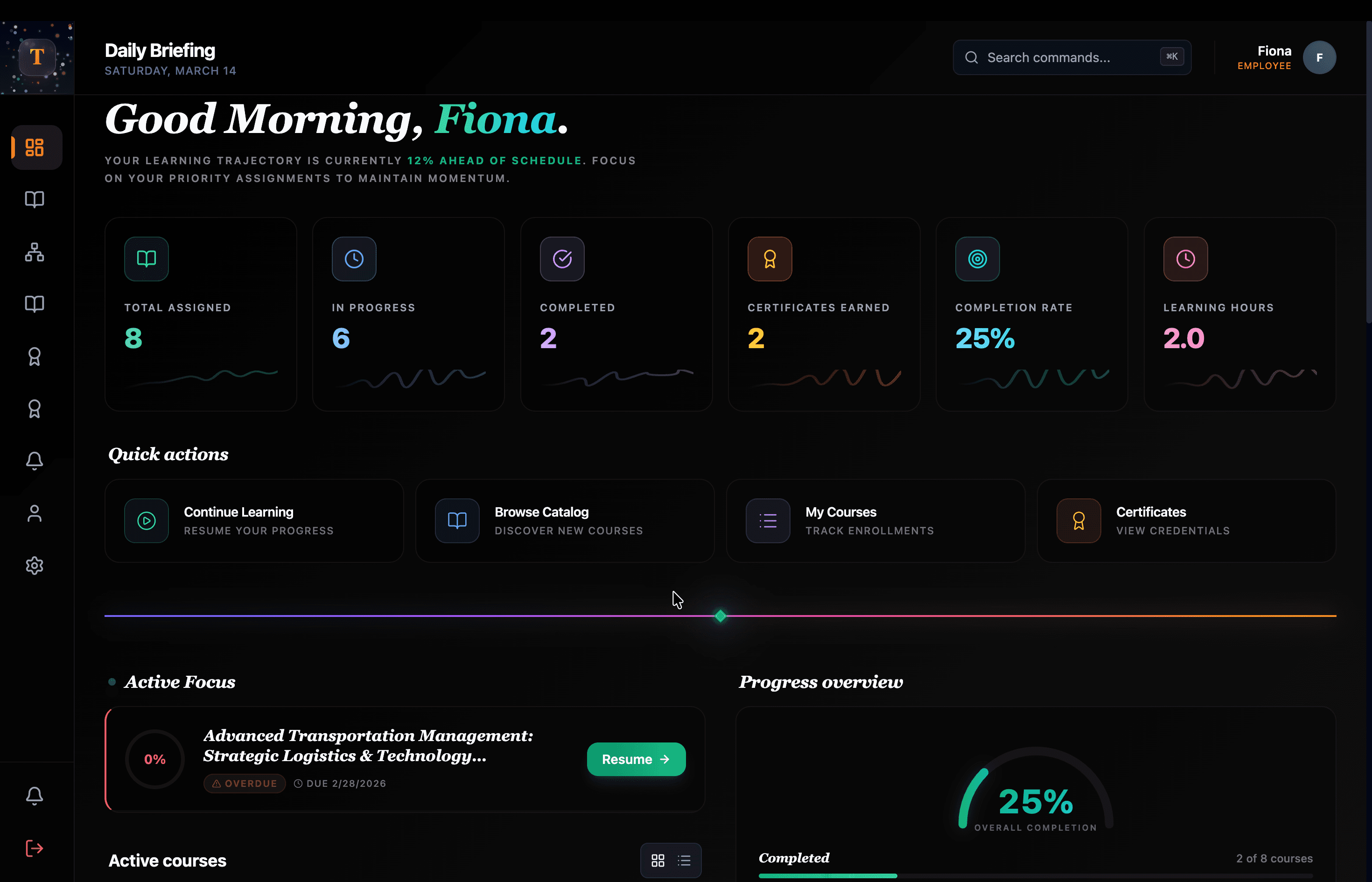
Your Daily Briefing serves as your mission control center. It provides a real-time snapshot of your current learning trajectory and immediate priorities.

Home Dashboard
Home Dashboard

High-Level Metrics

At the top of your dashboard, six key indicators track your overall performance and engagement:

  • Total Assigned: The number of mandatory courses your organization has required you to complete.
  • In Progress: Courses you have started but not yet finished.
  • Completed: A total tally of every course you have successfully finalized.
  • Certificates Earned: Your official count of industry-verifiable certifications.
  • Completion Rate: A percentage-based view of your efficiency across all enrolled content.
  • Learning Hours: The total time you have invested in professional development on the platform.

Quick Actions

Located directly below the metrics, these tiles provide one-click access to the most common tasks:

  • Start Learning: Instantly resume the last course you were working on to maintain momentum.
  • Browse Catalog: Explore the full library of AI and Cybersecurity courses to find your next area of focus.
  • My Courses: Access a detailed list of all your current and past enrollments.

Active Courses & Progress Overview

This section allows you to manage your daily workload:

  • Active Course Cards: If you are enrolled in a course, it will appear here with a direct link to continue. If no courses are active, use the Browse Catalog link to find a new topic.
  • Progress Overview: A visual breakdown showing your overall completion percentage, clearly distinguishing between what is completed and what is currently in progress.

Recent Activity (Bottom Section)

The Recent Activity feed provides a chronological audit of your latest interactions. It allows you to:

  • Quickly jump back into a module you recently viewed.
  • Verify when you successfully completed a quiz or earned a certificate.
  • Track your progress history to ensure you are staying on pace with your learning goals.
Best Practice for Learners: Check your Learning Trajectory status at the top of the screen (e.g., "12% Ahead of Schedule"). This AI-calculated metric helps you understand if you are meeting your professional development targets or if you need to focus on priority assignments to maintain momentum.
Section 3
3 / 7

2. Exploring the Course Catalog

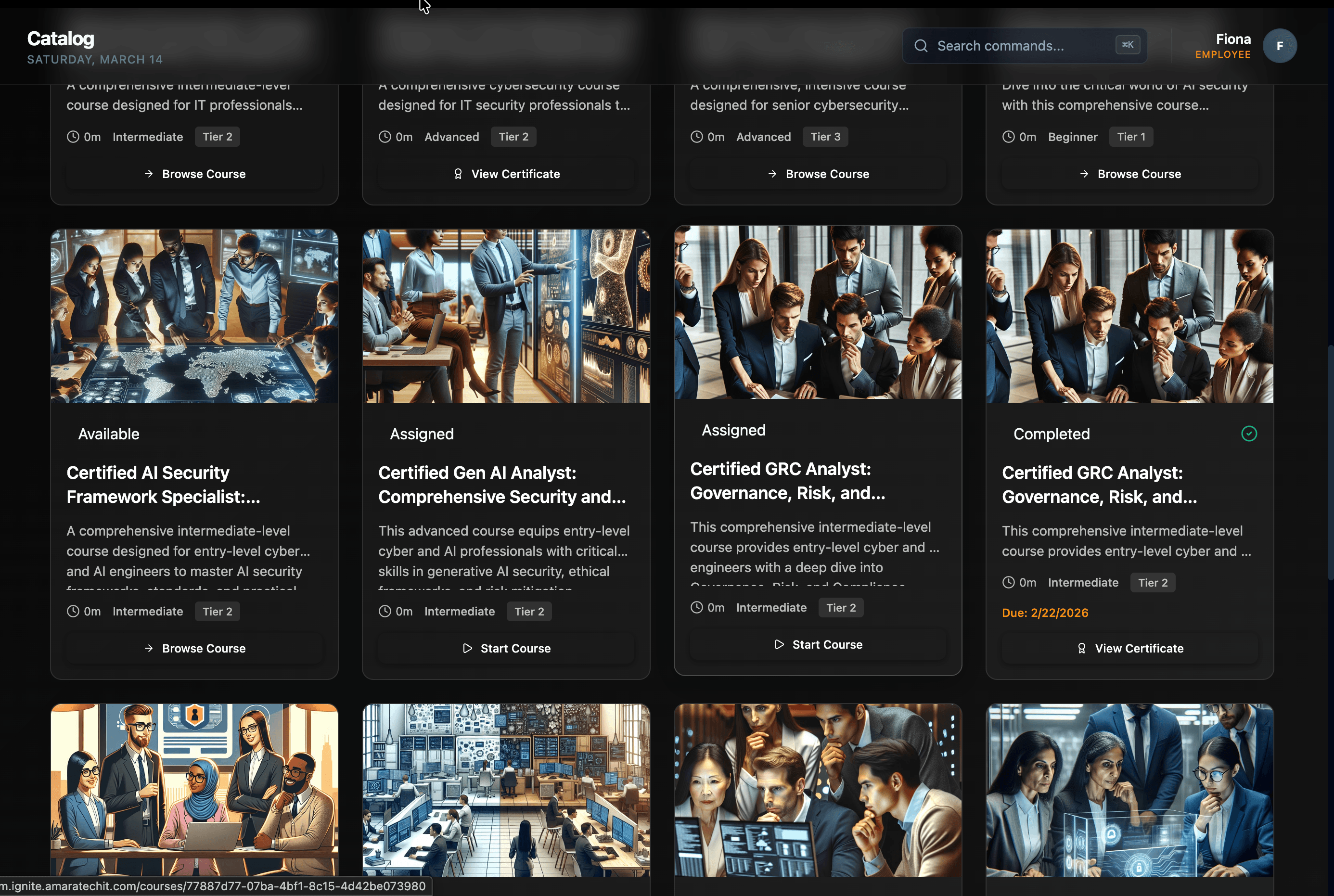
The Course Catalog is your central hub for discovering new content and expanding your skill set. Whether you are looking for free introductory material or advanced technical certifications, this page allows you to browse and enroll in courses tailored to your professional goals.

Course Catalog
Course Catalog

Finding the Right Course

The catalog is equipped with powerful tools to help you navigate our growing library of AI and Cybersecurity content:

  • Search Functionality: Use the search bar to find specific topics, technologies, or course titles instantly.
  • Flexible View Options: Toggle between Grid and List views to find the layout that helps you browse most effectively.
  • Advanced Filters: Narrow down your choices using five key criteria:
    • Category: Focus on specific domains like "Cybersecurity" or "AI & Applications."
    • Difficulty: Select from "All Levels," "Beginner," or "Intermediate" based on your current expertise.
    • Duration: Filter by time commitment to find a course that fits your current schedule.
    • Status: Track which courses you haven't started yet or those that are newly added.
    • Tier: Easily distinguish between Free Tier content and those requiring a specific subscription level.

Understanding Course Availability

Every course card in the catalog provides an immediate "At-a-Glance" status:

  • Available Tag: Clearly indicates which courses are ready for immediate enrollment.
  • Course Overview: Each card displays a high-level title and a brief description of the technical depth and learning outcomes.
  • Subscription Check: The Tier filter ensures you only see content compatible with your current access level, helping you avoid any friction during the enrollment process.

Enrolling and Getting Started

Once you find a course that matches your interests:

  1. Click on the Course Card to view the full curriculum, including the number of modules and final exam requirements.
  2. Select the Enroll button to add the course to your personalized My Courses list.
  3. The course will immediately appear in your Daily Briefing dashboard, allowing you to begin your first lesson.
Learner Success Tip: Use the Sort by feature to view courses Alphabetically (A-Z) or by Latest to ensure you never miss new content generated by the IgniteIQ platform. If you find an advanced course you're interested in, check the Difficulty tag to see if there are beginner-level prerequisites you should complete first.
Section 4
4 / 7

3. Managing Your Personal Library

Your personal library is divided into two distinct areas: My Courses for individual enrollments and Learning Paths for structured, company-assigned journeys. These tools help you organize your training and stay on top of your professional development goals.

Personal Library - My Courses

The "My Courses" Tab

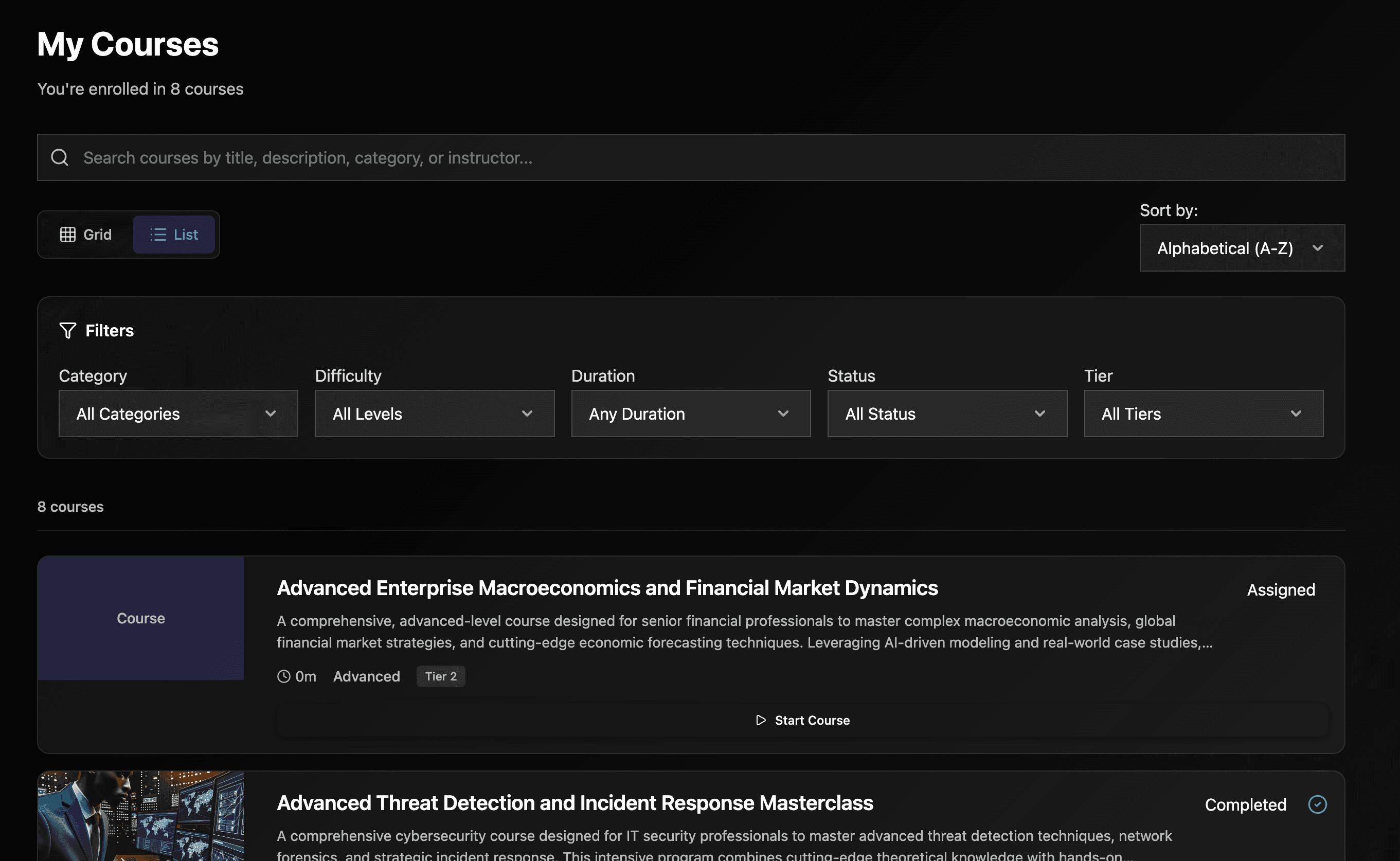
This is your primary workspace for active learning. It houses every course you have enrolled in from the catalog or that has been specifically assigned to you.

  • Unified Enrollment View: See all your active training in one place, with an "Assigned" tag clearly marking mandatory company training.
  • Advanced Organization: Use the same powerful filtering system found in the catalog—including category, difficulty, and tier—to sort through your personal enrollments.
  • Resume Capability: Each course card tracks your individual progress, allowing you to jump back into a lesson exactly where you left off.
Personal Library - Learning Paths

The "Learning Paths" Tab (Your Structured Journeys)

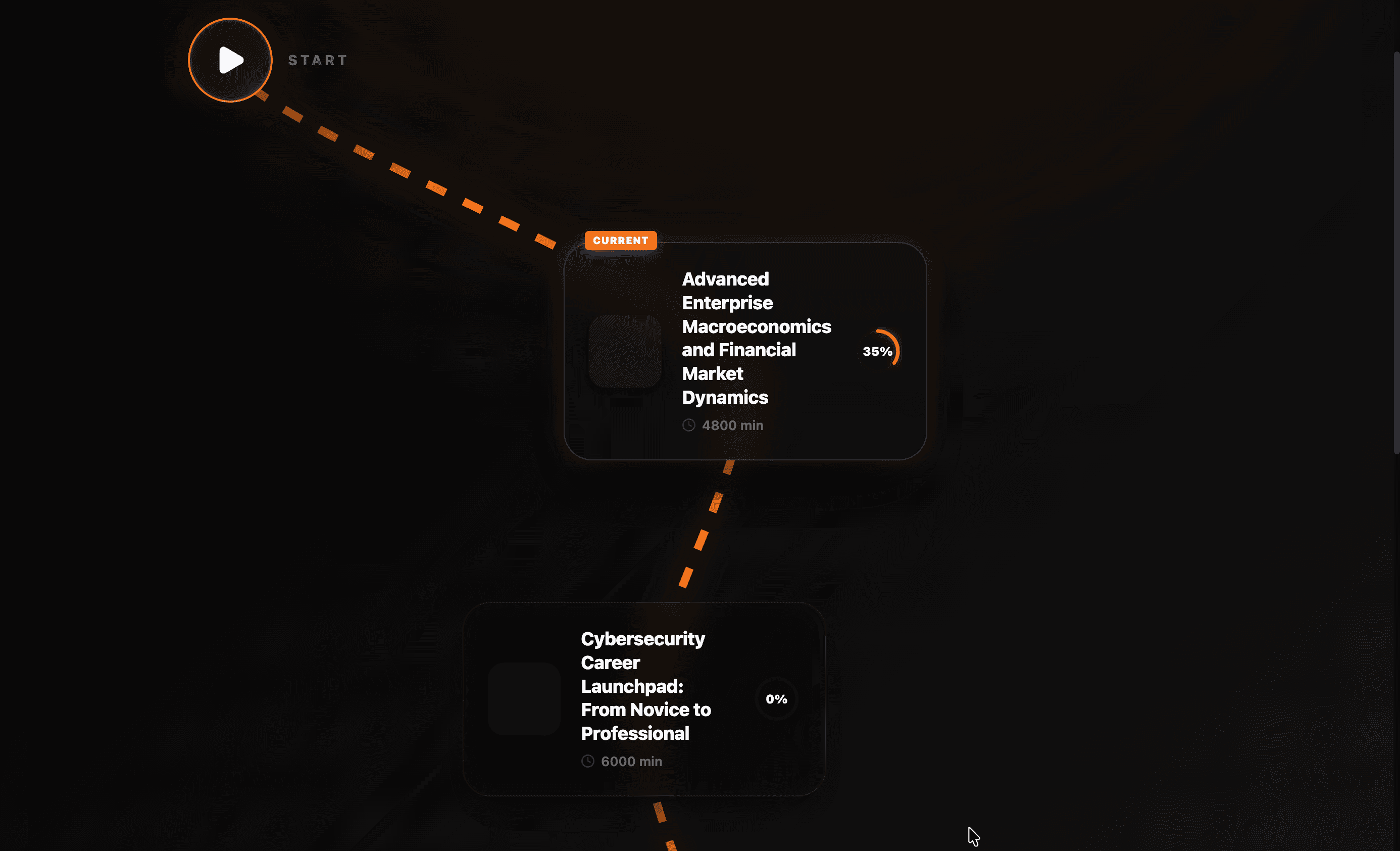
While individual courses focus on specific skills, Learning Paths are curated journeys designed for total mastery of a subject area.

  • Manager-Assigned Journeys: When your leadership team identifies a specific skill gap or career milestone, they will assign a Learning Path that appears here.
  • Step-by-Step Mastery: These paths typically group multiple related courses into a logical sequence, ensuring you build foundational knowledge before moving to advanced technical concepts.
  • Placeholder for Assigned Paths: If your screen currently shows "No assigned paths yet," it simply means you are free to focus on individual enrollments from the catalog until a specific journey is designated by your manager.
Learner Success Tip: Prioritize courses with the "Assigned" tag in your My Courses tab first. These are time-sensitive requirements from your organization. Once those are complete, you can use the Learning Paths tab to see if your company has laid out a long-term roadmap for your career growth.
Section 5
5 / 7

4. Engaging with Course Content

IgniteIQ courses are designed as immersive, story-driven experiences that move beyond static text. Each course follows a structured path from foundational concepts to practical application, supported by integrated multimedia and AI-generated visual narratives.

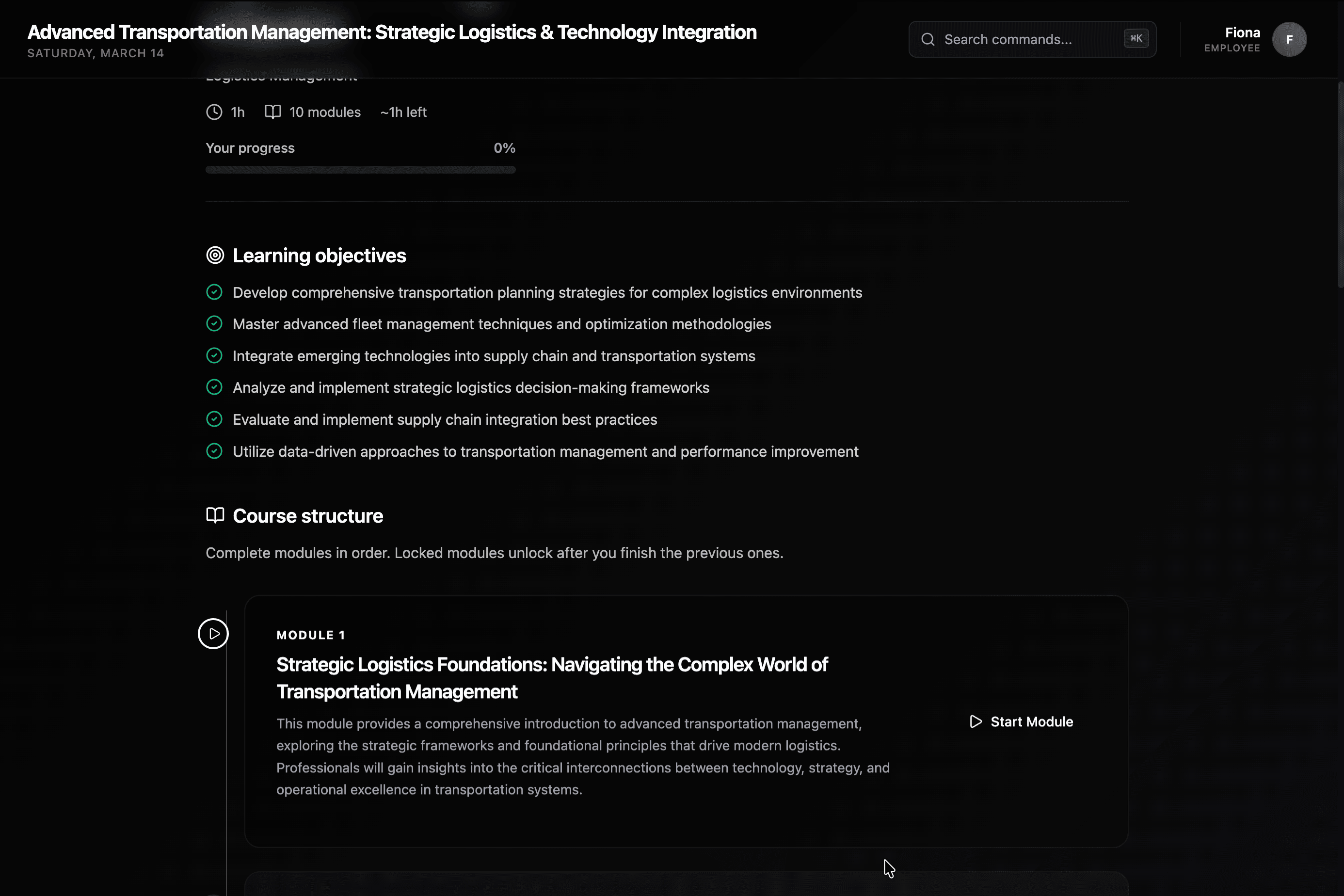
Course Content
Course Content

Understanding the Course Overview

When you launch a course, you are presented with a comprehensive "Learning Map" that includes:

  • Learning Objectives: A clear list of the specific skills and technical competencies you will gain by the end of the course.
  • Course Progress Bar: A visual indicator of your current completion percentage, helping you track exactly how much content remains.
  • Linear Module Structure: Courses are organized into sequential modules. You must complete them in order, as locked modules unlock only after the preceding ones are finished.
  • Quick Stats: At the top of the page, you can instantly see the total duration (e.g., ~1h), the number of modules (e.g., 10 modules), and the remaining time left to complete the course.

Interactive Visuals and Practical Scenarios

Most courses utilize an "Engaging Story" approach to make technical topics easy to understand.

  • AI-Generated Visuals: Each module is accompanied by custom images generated to visualize complex scenarios—such as a SOC team analyzing a global threat map or professionals protecting mobile devices.
  • Story-Based Learning: Rather than abstract theory, you will often follow characters through real-world business problems.
  • Example: In a security module, you might see a diagram like "How John Should Analyze This Alert," which breaks down complex triage into four clear, logical steps: Validate, Identify, Look for Patterns, and Assess Impact.

Knowledge Checks and Final Certification

To ensure you are gaining practical, "Outcome-Focused" knowledge, every course features a two-tiered assessment model:

  • Module Quizzes: Most modules conclude with short knowledge checks to reinforce the core takeaways before you proceed.
  • Final Exam: After completing all modules, you will take a comprehensive final exam. This exam is designed to validate your mastery of the entire course curriculum.
  • Earning Your Certificate: Upon achieving a passing score (typically 80%), the platform instantly generates your authentic, downloadable certificate, which is then recorded in your Home Dashboard.
Learner Success Tip: Take advantage of the Integrated Media. Many courses include downloadable PDFs or linked YouTube videos directly within the lesson view. These are curated to provide deeper technical dives into the topics being discussed in the AI-generated narrative.
Section 6
6 / 7

5. Tracking Progress and Celebrating Success

This section of the sidebar allows you to monitor your growth, access your professional credentials, and review important updates from your organization.

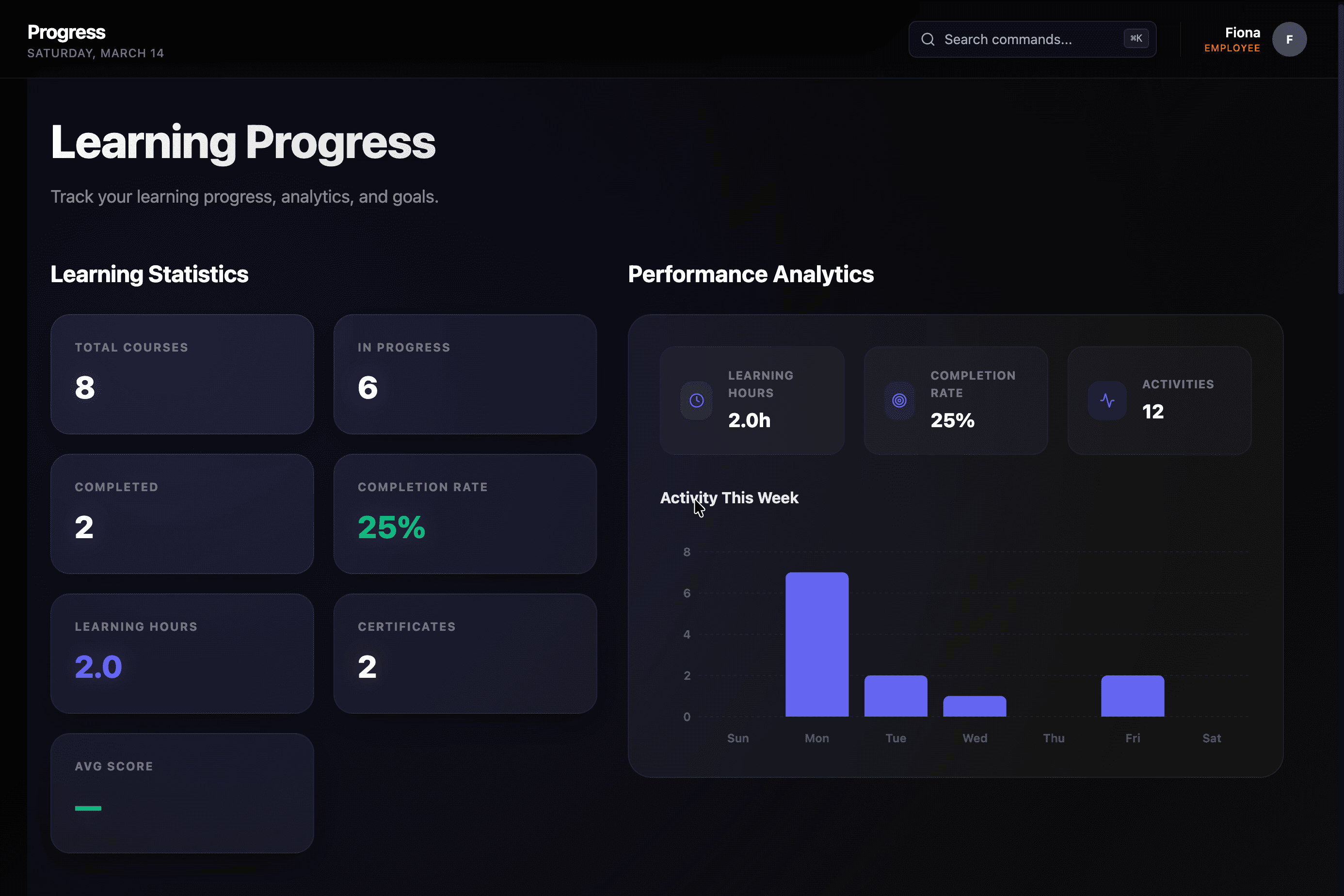
Progress Overview
Progress Overview

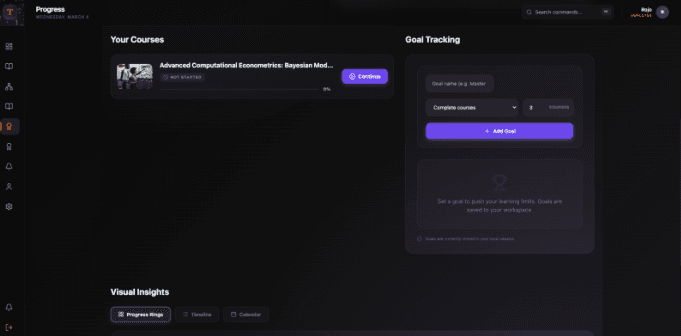
The "Progress" Tab: Your Learning Analytics

The Progress tab provides a deep dive into your training data, helping you visualize your commitment to professional growth.

  • Detailed Analytics: View comprehensive charts of your engagement rates and module completion speeds over time.
  • Goal Tracking: Monitor your "Learning Trajectory" to see if you are meeting your weekly or monthly development targets.
  • Skill Gaps: Identify which categories (e.g., Cybersecurity vs. GRC) you have spent the most time in, helping you balance your expertise.
Achievements Tab
Achievements Tab

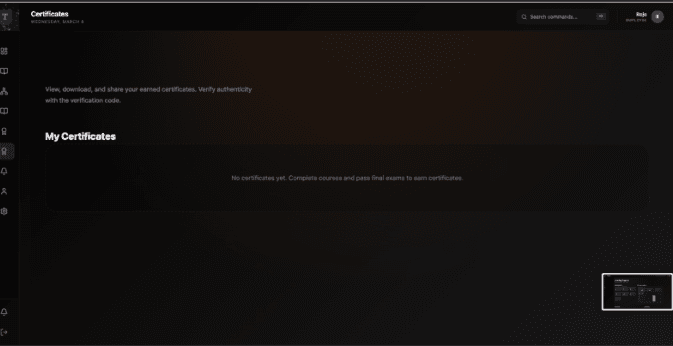
The "Achievements" Tab: Your Credentials

The Achievements tab is your digital trophy case and the primary location for managing your career milestones.

  • Certificate Access: Once you pass a final exam with the required score (typically 80%), your official certificate will appear here.
  • Verification & Downloads: Each certificate is authentic and verifiable. You can download them as high-quality PDFs for your personal records or for sharing on professional networks like LinkedIn.
  • Historical Record: A permanent log of every certification you have earned on the IgniteIQ platform is maintained here for easy retrieval during performance reviews.
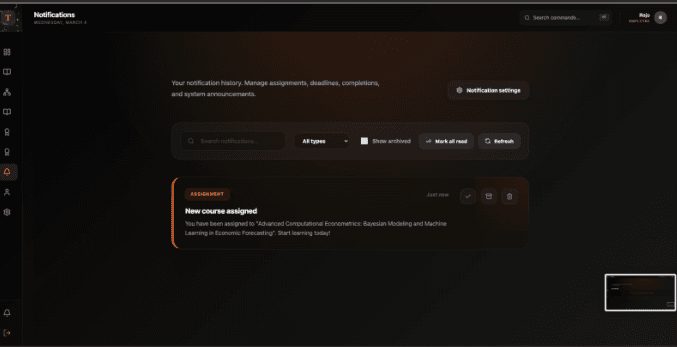
Notifications Tab
Notifications Tab

The "Notifications" Tab: Your Activity History

Stay connected with the platform and your management team through a centralized feed.

  • Alert History: Review a chronological list of all system notifications, including new course assignments, upcoming deadlines, and successful enrollment confirmations.
  • Engagement Prompts: Receive reminders if you have been away from a course for a while, helping you maintain your learning momentum.
  • Direct Communication: Access important announcements from your company's LMS admins regarding new Learning Paths or mandatory compliance updates.
Progress Details
Progress Details
Learner Success Tip: Check your Achievements tab immediately after passing a final exam. If your certificate hasn't appeared, ensure you have completed every single module in the course—sometimes a missed "Knowledge Check" in an earlier module can prevent the final certification from triggering!
Section 7
7 / 7

6. Managing Your Profile and Settings

The Profile and Settings tabs are where you manage your digital footprint on the IgniteIQ platform. This section allows you to personalize your learning environment and ensure your professional details are always up to date.

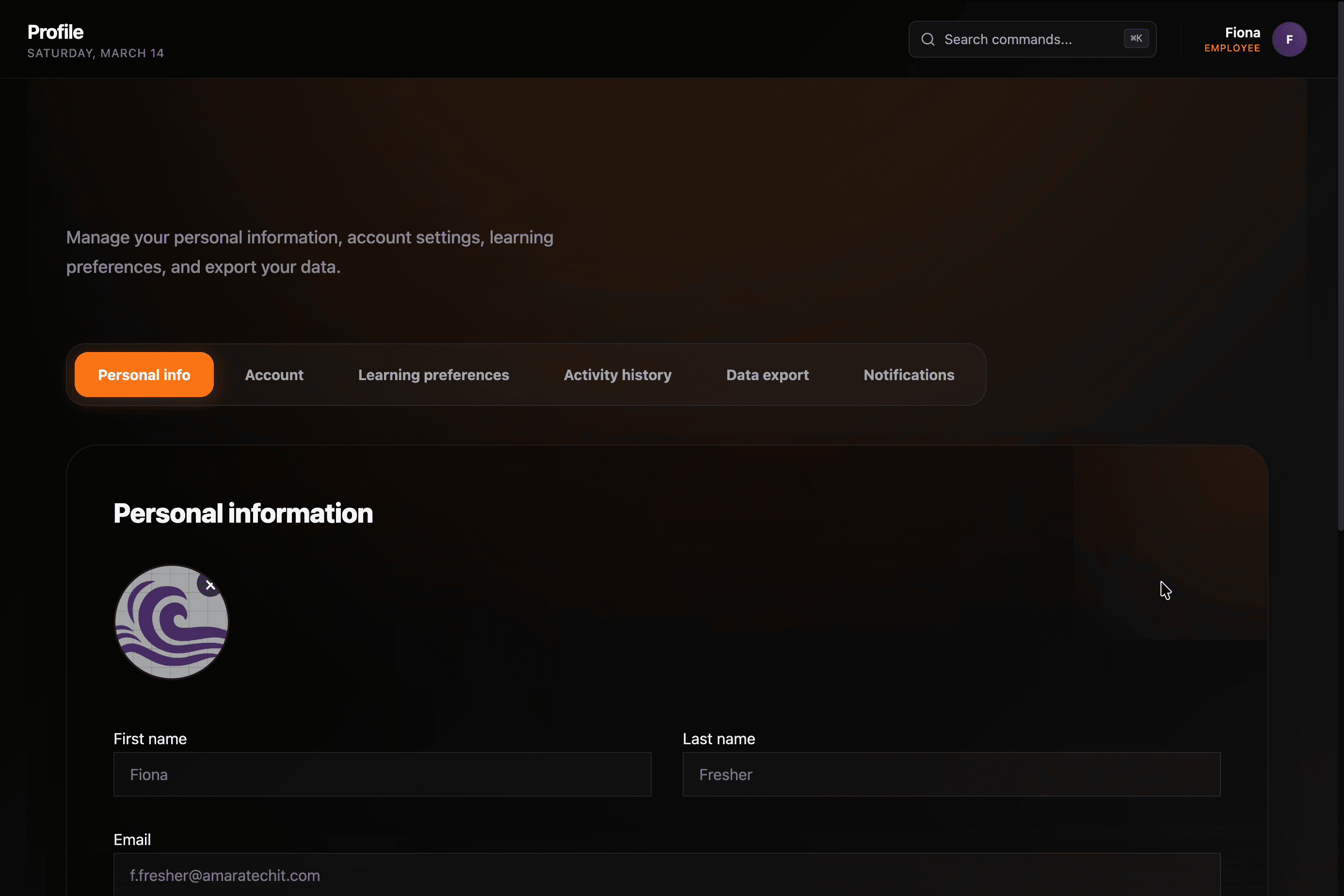
Profile Tab
Profile Tab

The "Profile" Tab: Your Professional Identity

Your profile serves as the foundation for your learning journey and certification history.

  • Personal Information: Keep your name, department, and contact information current to ensure your earned certifications and official records are accurate.
  • Certification Preview: A quick-view of your professional credentials, allowing you to see your progress toward becoming a certified specialist in areas like Incident Response or GRC.
  • Activity Summary: A high-level view of your total learning hours and certifications earned, providing an easy way to verify your professional development milestones.
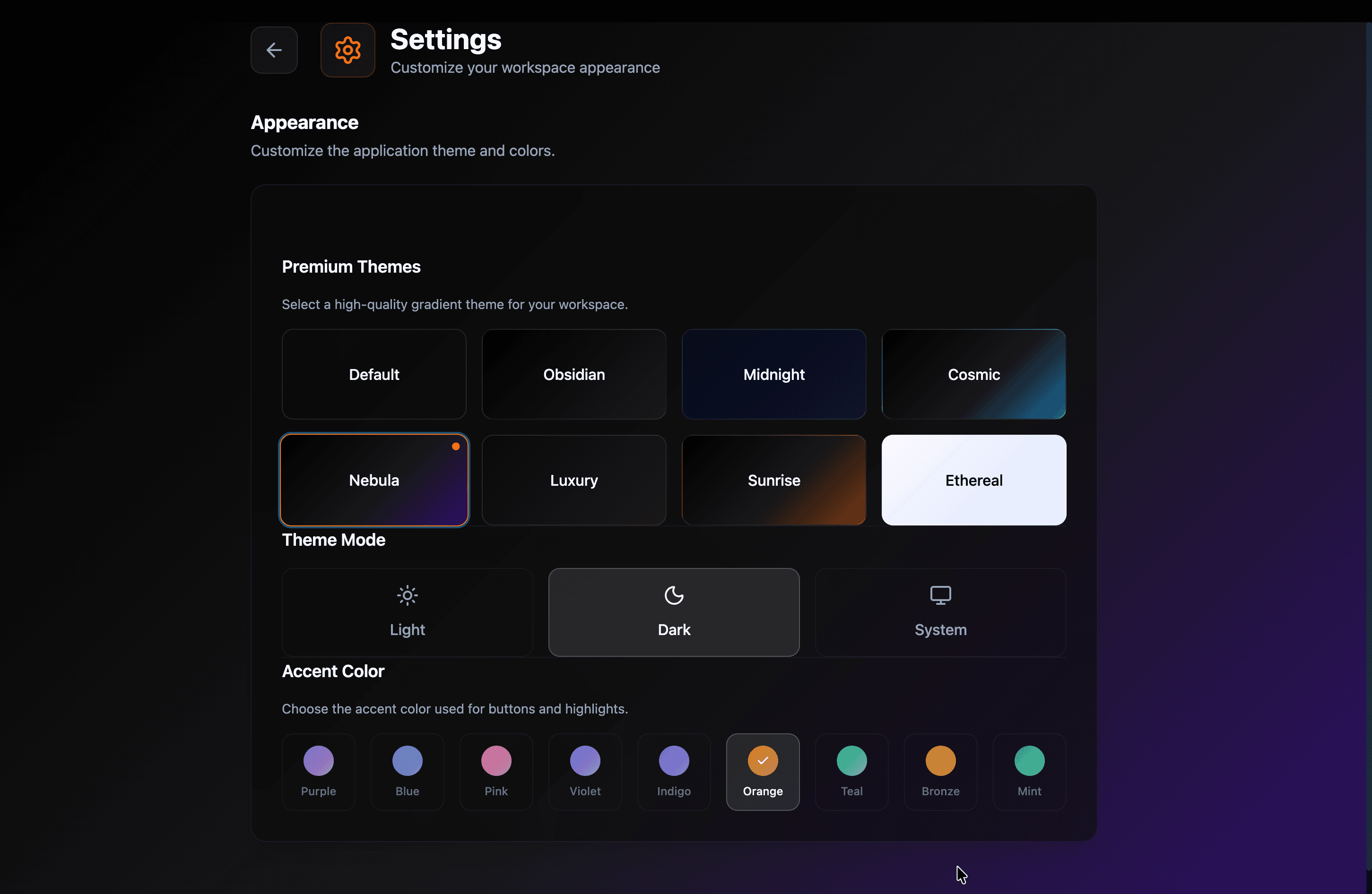
Settings Tab
Settings Tab

The "Settings" Tab: Customizing Your Experience

The Settings tab puts you in control of how the platform interacts with you.

  • Notification Preferences: Tailor your alerts to receive timely updates on new course assignments, deadline reminders, or announcements, ensuring you never miss important company communications.
  • Security & Privacy: Review your account security settings, including multi-factor authentication (MFA) options, to keep your learning progress and account access protected.
  • System Preferences: Adjust your interface settings—such as dark mode, language, or default dashboard views—to match your preferred workflow.
Learner Success Tip: Update your Notification Preferences during your first week. If you have a busy project schedule, you may want to enable "Digest Emails" to get a summary of your pending assignments once a week, rather than real-time notifications for every new enrollment.